Cheat sheet: Discord word (Matrix word)
- Server (Space)
- Channel (Room)
- Category (Sub-space)
- Username (Matrix ID, looks like
@yourname:mavtech.app) - Discord app (Client: we use Element for these docs)
- The "Untold Chaos" discord "guild", (Homeserver:
matrix.mavtech.app) - Server invite link (Room/Space address, looks like
#name:mavtech.app) - Server Discovery (Explore rooms, the room directory)
- Voice channel / call (Call, through Element Call)
- DM (Direct Message, same idea)
Throughout this guide, the Discord word comes first and the Matrix word follows in (brackets).
1Step 1: Download the app (client)
Get Element: https://element.io/download
Desktop, iOS, Android, or use it in a browser at https://app.element.io
Other Matrix clients should work, but only Element has been tested.
2Step 2: Point it at our server (homeserver)
Element connects to the public matrix.org by default. We need to switch it to our server (homeserver).
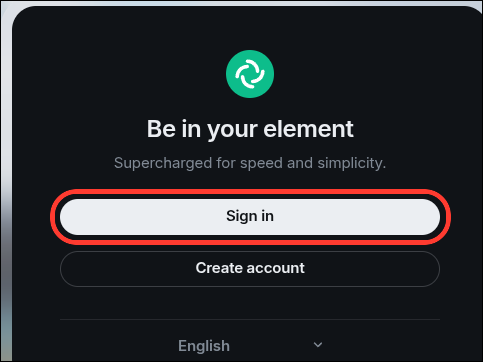
- Open Element and click Sign in.
- Next to Homeserver you'll see
matrix.org. Click Edit.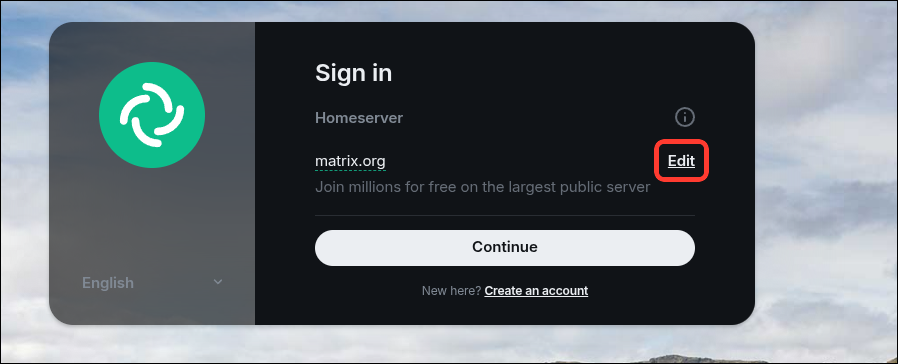
- Enter:
matrix.mavtech.app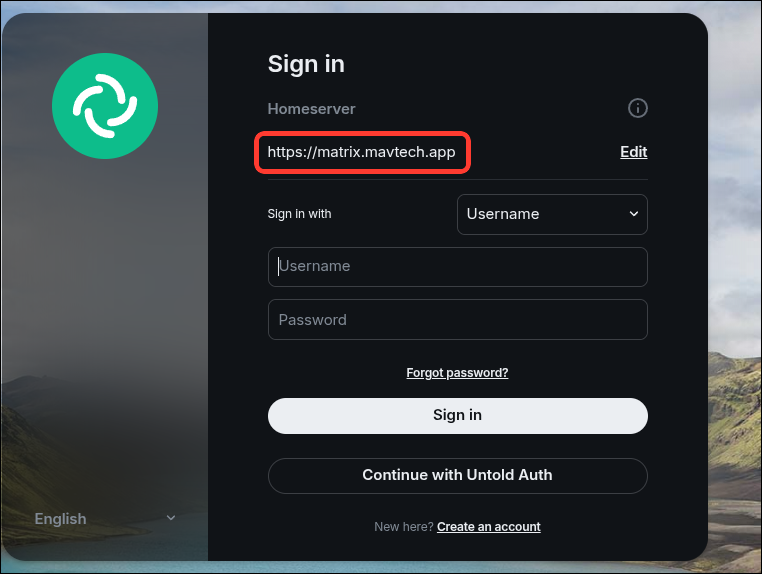
UI might also look like this
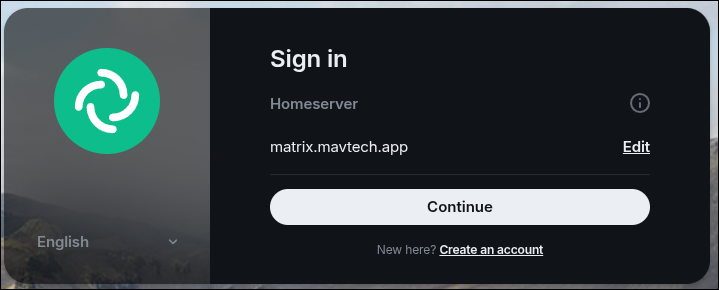
- Either way click on Continue OR Continue with Mavtech SSO yes I know the screen shots don't match the text deal with it.....
You should now see https://matrix.mavtech.app listed as the homeserver.
3Step 3: Create your account (register)
We use our own login system, so check your URL and make sure your on a "mavtech.app" domain.
- A login page opens. At the bottom, click New user? Register.
- Fill in your details. Your username here becomes your Matrix ID (
@yourname:mavtech.app), so choose carefully. - Finish any verification step (captcha, email), then you'll land back in Element, logged in.
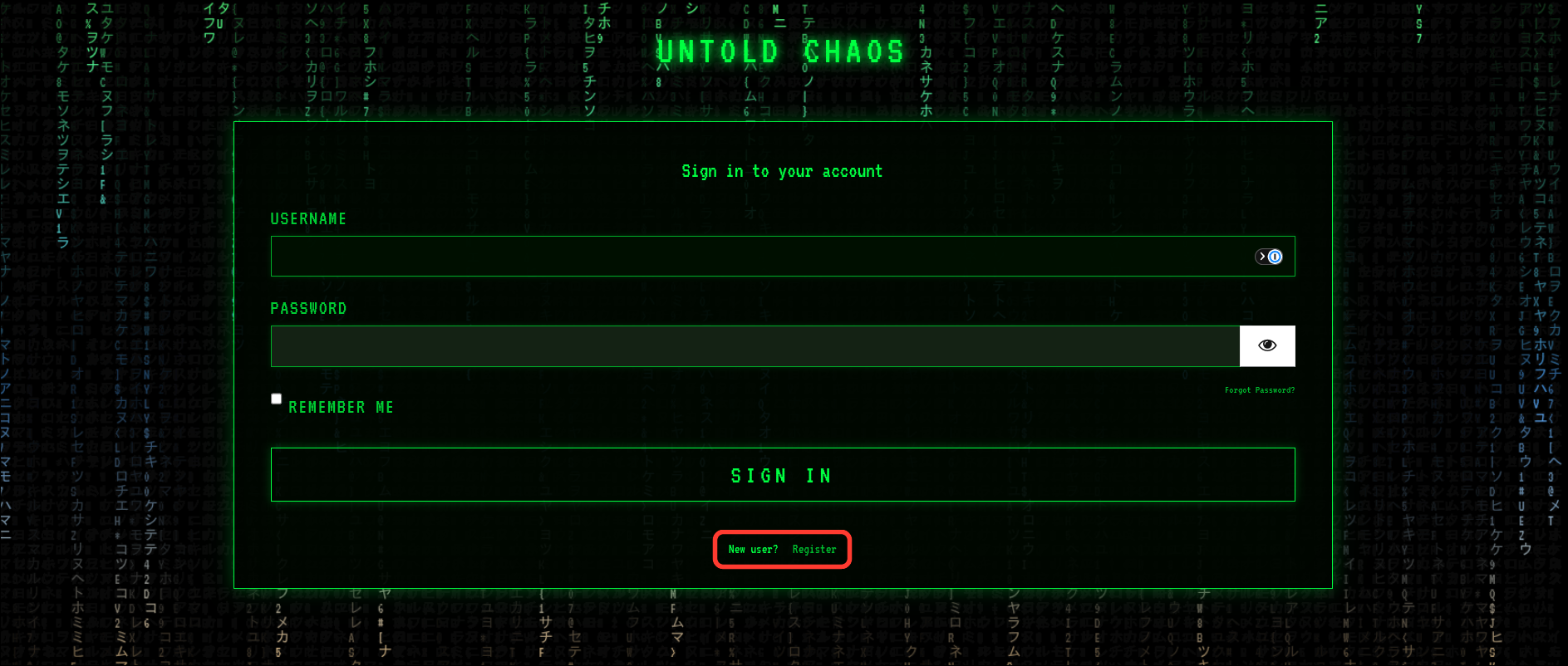
Already registered? mother fucker if I have to tell you to put in your fucking user / password from when you created your account....
4Step 4: Save your recovery key ⚠️ do not skip this
Unlike Discord, Matrix can encrypt your DMs and private channels (rooms) so even the server can't read them. Because of that, the key to your message history lives with you, not with us.
- After your first login, Element will ask you to set up recovery (Secure Backup).
- It gives you a recovery key. Save it in a password manager or somewhere safe.
- If you log in on a new device (phone, another PC), Element will ask you to verify it. Either approve it from a device that's already logged in, or enter your recovery key.
🚨🔑 If you lose every device and the recovery key, your old encrypted messages are gone for good. 🔑🚨
❌ We can't recover them for you. ❌
5Step 5: Find our server (space) and channels (rooms)
Join our server (space)
- In the far-left bar (the Space bar, same spot as Discord's server list), click + → Join a space (or use an invite link someone sent you).
- Enter our space address:
TODO #space-name:mavtech.app - Click Join. Its icon now shows up in the left bar, just like a Discord server.
Browse channels (rooms)
- Click the space icon, and its channels (rooms) appear in the list next to it.
- Some channels (rooms) are not joined automatically. Click the space name → Explore rooms to see them all, then click Join on the ones you want.
Search everything (Server Discovery, which is the room directory)
- Press Ctrl+K (⌘K on Mac) or click Explore rooms (🧭) at the top of the room list.
- Make sure the server dropdown says mavtech.app, not matrix.org.
6Step 6: Getting around
- DMs (Direct Messages): click + next to "People", then search for
@theirname:mavtech.app. - Ping someone (mention): type
@and their name, same as Discord. - Voice channel / call (Call): in a channel (room), click the 📞/🎥 icon at the top right to start or join a call. Screen share works too.
- Threads (Threads): hover a message → Reply in thread.
- Bridged channels (bridged rooms): some channels (rooms) are linked to Discord. Messages from Discord users appear there and yours go back to Discord, so you won't miss anything during the move.
Stuck? Ask in TODO #help:mavtech.app or ping TODO here on Discord.